Security
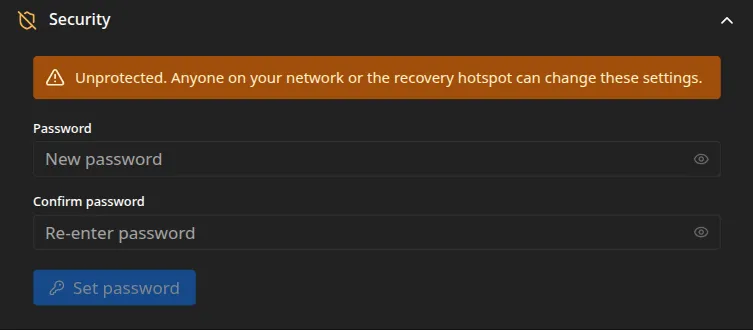
The admin interface can run open or behind a password. Set one if the frame shares a network with people you would rather not let reconfigure it, or if the recovery hotspot might be left open, since anyone who can reach the frame can otherwise change its settings, photos, and Wi-Fi. Manage it under Settings → Security. The frame’s own slideshow is never behind a password.
What a password protects
Section titled “What a password protects”With a password set, the admin interface asks you to sign in on the first visit and keeps you signed in afterward. It covers the whole admin interface and its API: settings, photos, Wi-Fi, and updates. The slideshow on the frame keeps running untouched, since the display is served over the device’s own loopback. You can also set the password during install.
Setting a password
Section titled “Setting a password”Until you set one, the card shows an Unprotected warning. Enter a password, confirm it, and choose Set password (up to 72 characters). It takes effect at once, and you sign in on the next visit.
Changing or removing it
Section titled “Changing or removing it”With a password in place, the card asks for the current password to Change password, or to Disable protection, which reopens the admin interface to anyone in range. Both need the current password, and changing it signs out other sessions.
If you forget the password, clear the saved one on the device over SSH, by removing it from the configuration, then restart. See Configuration basics for where settings live.
Hardening the device
Section titled “Hardening the device”For anything past casual protection, secure the network rather than leaning on the password. Since the frame usually lives on Wi-Fi, where other clients can often see each other’s traffic, these matter more than they would on a wired desk:
- Put it behind a reverse proxy with TLS. Run a proxy such as Caddy, nginx, or Traefik in
front of the frame so you reach the admin interface over HTTPS. That encrypts the password and
the session cookie in transit. A proxy on your own network can use a certificate from a domain
you own or from an internal certificate authority. The frame’s own kiosk reaches the backend
over loopback and bypasses the proxy, so this does not affect the on-screen display. Only a
proxy that the on-device kiosk itself routes through, without an
X-Forwarded-Forheader, could briefly confuse the screen-shape detection used for split-screen pairing; it self-corrects on the next heartbeat. - Segment the Wi-Fi. Keep the frame on a separate or guest network, and turn on your access point’s client isolation so other devices on the Wi-Fi cannot reach it at all. Isolation is what closes the sniffing gap that plain HTTP leaves open.
- Limit who can reach it. A firewall rule that allows the admin interface only from the device you manage it with shuts out everyone else on the network.
- Never expose it to the internet. Keep the frame on your own network. To reach it from away, use a VPN such as WireGuard or Tailscale rather than forwarding a port.