Slideshow & display
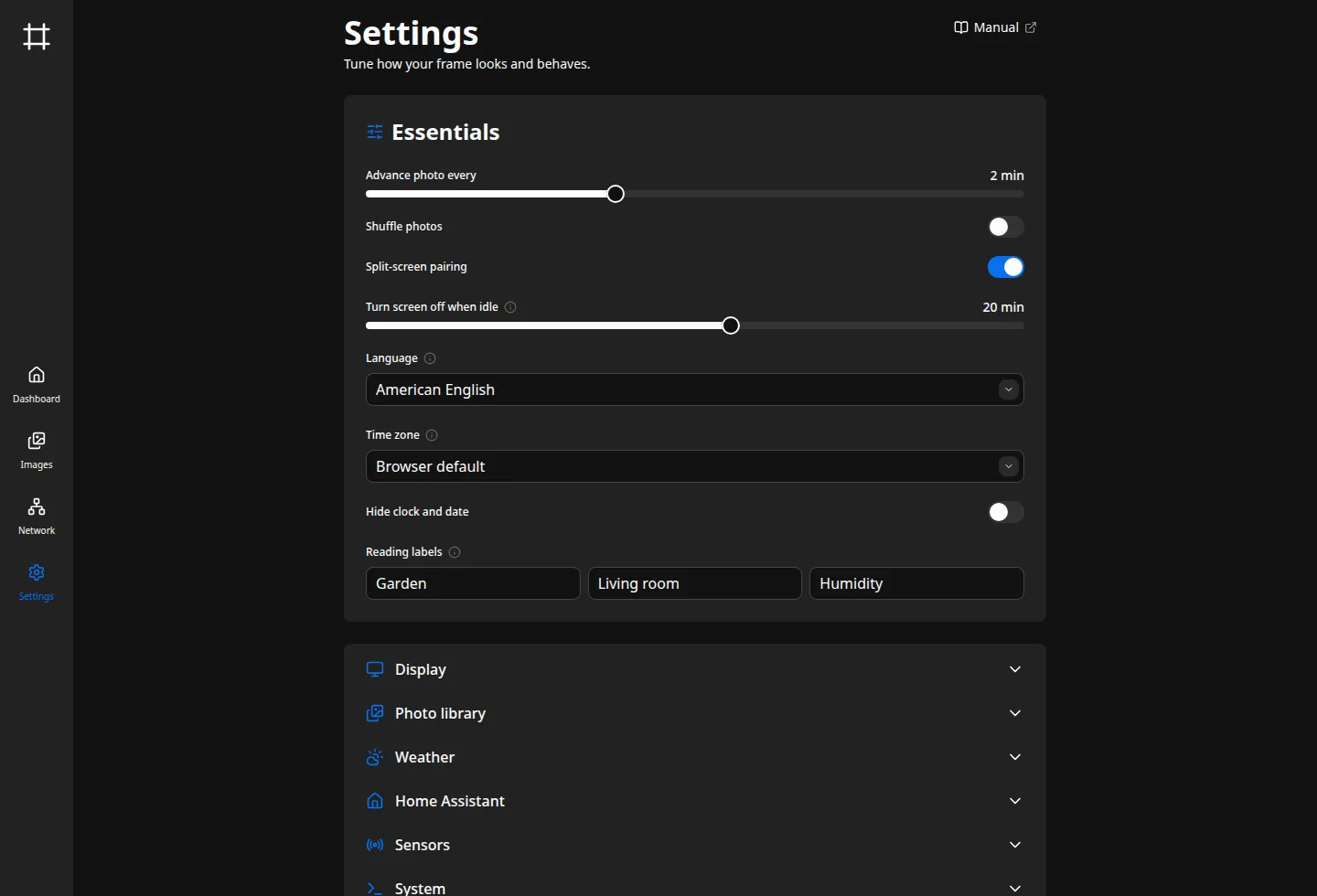
The slideshow and the screen’s behavior are set on the Settings page, in two groups. Essentials holds the photo rotation and pairing, the idle screen-off, the language, and the reading labels. These apply the moment you save. Display holds the screen output and which screen-power backend the frame uses. See Configuration basics for how saving and restarts work.
The photo rotation
Section titled “The photo rotation”Advance photo every sets how long each photo stays on screen before the next one. The
default is two minutes (slideshow.interval).
Shuffle photos controls the order. With it off, photos cycle in the order you set on the
Photos page. With it on, the order is reshuffled each full
pass (slideshow.randomize, off by default). Toggling it starts a fresh cycle at once, rather than
waiting for the current pass to finish.
Split-screen pairing
Section titled “Split-screen pairing”A portrait photo on a landscape screen, or a landscape photo on a portrait screen, cannot fill the frame without cropping away most of it. Split-screen pairing avoids that. When a photo’s shape is too far from the screen’s to fit cleanly, the frame shows it beside another photo of the same orientation, side by side with a thin gap, instead of cropping it. Photos that already fit the screen show one at a time, full-frame.
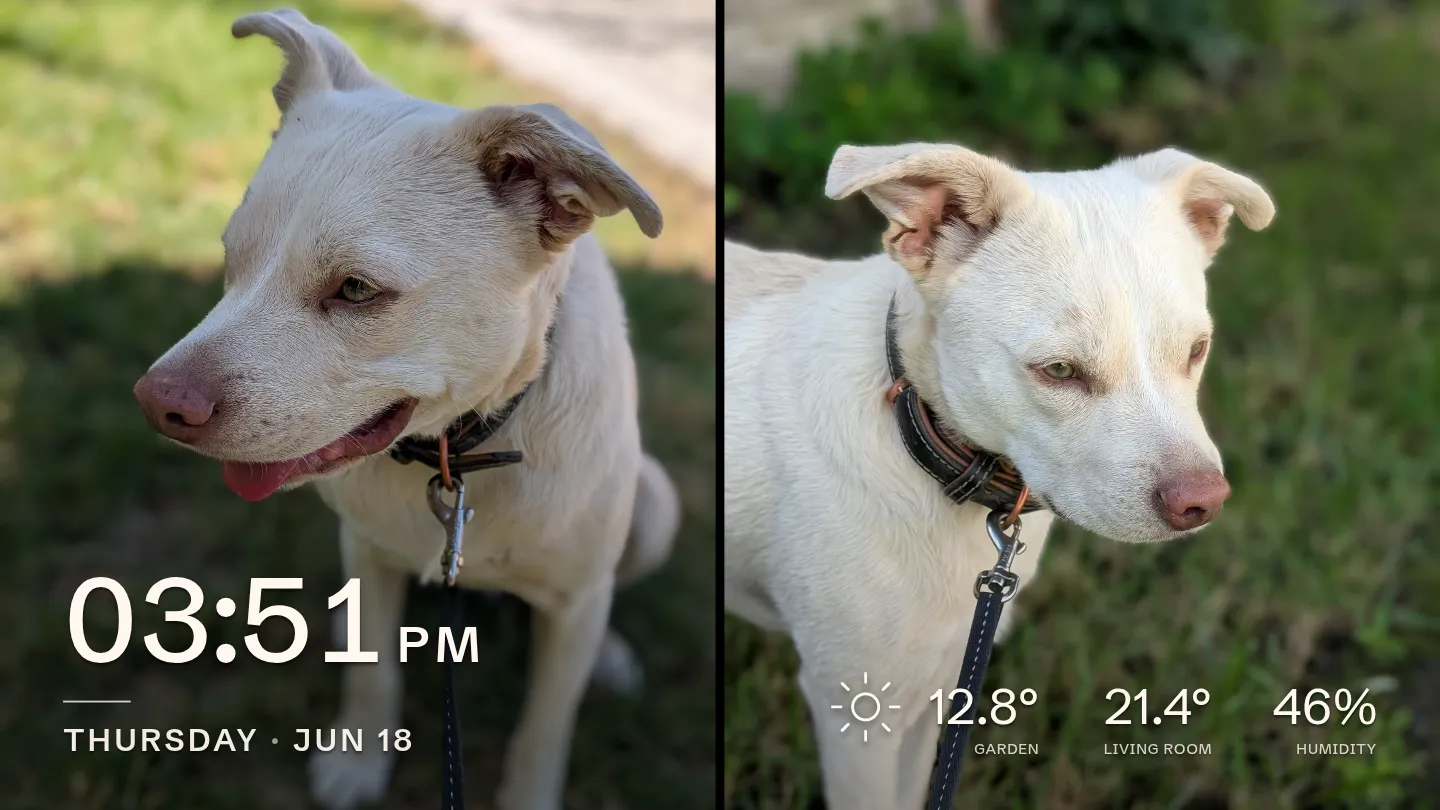
The toggle is on by default (slideshow.split_screen). Turn it off to crop every photo to fill
the screen. A lone photo of its orientation, with no partner in the current pass, shows on its
own, cropped.
Pairing follows the screen, not a fixed setting: the frame reports its own dimensions, so turning
a frame to portrait pairs landscape photos instead. How far a photo’s shape must differ before it
pairs is slideshow.pair_threshold in the configuration reference,
and the default suits most screens.
Turning the screen off when idle
Section titled “Turning the screen off when idle”Turn screen off when idle blanks the panel after a stretch with no motion, and motion
wakes it again (display.blank_after, twenty minutes by default). This is a true power-off of
the panel, not a black photo.
It needs a motion sensor. Without one the control reads Never and is disabled, since nothing would be left to wake the screen. To turn the screen on and off by hand instead, use the toggle on the Dashboard or the switch exposed to Home Assistant.
Language and labels
Section titled “Language and labels”Language sets the locale the frame formats with, both the date wording and the 12- or
24-hour clock (display.locale, American English by default). It changes the frame, not the
admin interface.
Time zone sets the zone the clock and date follow (display.timezone). Left as Browser
default it uses the frame device’s own zone, which is right for most setups. Pick an IANA zone,
such as Europe/Budapest, to pin the frame to a different place.
Hide clock and date removes the time and date from the frame (display.hide_clock_date, off
by default). With the clock hidden and no readings configured, the whole bottom overlay
disappears and you get just the photos. The kiosk display shows what hides.
Reading labels are the captions under the sensor readings on the frame, in your own words: the outside reading, the inside reading, and humidity. Leave one blank to hide that caption. The kiosk display shows where they appear.
Screen-power backend
Section titled “Screen-power backend”The backend is how the frame powers the panel. Two options exist: wlopm (default, recommended) and vcgencmd (a legacy fallback). wlopm is the more reliable path. vcgencmd trims a little memory but can be less stable, so use it only if wlopm gives you trouble.
Each backend installs its own system services and boot configuration, so the Backend
dropdown in Settings does not switch between them on its own. To change the backend, re-run the
installer with its --display-backend flag (see Install). It
reconfigures the system, and you reboot to apply. The story & the hard parts
covers why the two differ.
Screen output
Section titled “Screen output”Wayland output is the display connector the wlopm backend targets, such as HDMI-A-1. Pick
a connected display from the list or type the name.
Screen rotation
Section titled “Screen rotation”Rotation turns the whole picture to match how the frame hangs: landscape, portrait
(rotated right or left), or upside down. It applies the moment you save, with no restart
(display.rotation, degrees counter-clockwise, default 0).
Rotation changes what fits the screen, and the slideshow follows. On a portrait frame, portrait photos fill the screen on their own, and split-screen pairing pairs the landscape photos instead, stacked one above the other.
Rotation is available on the default wlopm backend only.
Every setting on this page maps to a key in the configuration reference.